Next next steps
When your first projects are running. Where your work gets stored, how to put it online, how to connect the agent to your systems and when to leave the app.
This page is for the moment when the app isn't enough any more. Not because it can't do something, but because you start wanting to show your results, connect them and run them at scale.
None of this is necessary. You can work for years without any of it.
GitHub — where your work gets stored
GitHub is online storage for a project, together with the history of every change. You don't need to know how to use it — just tell the agent to upload the project there, and it will.
You create an account at github.com, and for what we're talking about here it's free.
Four reasons why it's worth it:
- History. You can go back to the version that worked last week. The whole project, not one file.
- A backup off your computer. Laptops get lost.
- Sharing. You send a link instead of files by email.
- A trigger for deployment. This is the main reason. A website connected to GitHub updates itself as soon as you change something in it.
Two things to watch. Create private repositories — public ones can be seen by anyone. And never put passwords or access keys into a repository — once they get in, they stay in the history too, and removing them properly is real work.
Vercel — how to get the result online
Vercel turns your folder into a web address you can send to anyone — a website, simply put. The free plan covers most of what you'll build. You can create your own address for each project. It works brilliantly together with GitHub and can update itself from it automatically.
You create an account at vercel.com, and you can sign in straight through GitHub.
But it works without GitHub too. At vercel.com/drop you drag a folder into the browser and a few seconds later it's live. No setup, no extra account apart from Vercel itself.
With GitHub, though, it's in a different league. You connect them once, and from then on every change deploys itself. You just tell the agent to publish it, and a minute later the new version is out.
What's good to know it can do:
- Your own domain. Instead of Vercel's address, something like
something.yourdomain.com. - A password. When a page isn't meant for the public. Vercel offers password protection as a paid feature, but you can also have the login built right into the page — and that works on the free plan too.
- Preview versions. Every variant gets its own address, so you can show it before it goes live.
Connecting via MCP and API
In Next steps we talked about connecting to email, calendar and data. Here's how it works under the hood — and what to do when there's no ready-made connection for your system.
Use MCP or an API if you want to get data from somewhere or send it somewhere. For example:
- draft an email
- create a meeting
- build an analysis from data
- update prices in an online shop
- ...
Put simply, MCP is there when you want to work with some service or program without having to open it.
MCP is a common language. Whatever speaks it can be connected quickly and without programming. The big tools are adding it themselves one by one — today MCP is practically the standard for most large services. When there's no MCP, there's the API. Almost every system has an interface through which you can get at the data. It's enough to give the agent a link to the documentation and an access key — it will read the rest and write the code itself. This is the moment when "can work with files" turns into "can work with your company". Ask Claude :)
An example: if you run an online shop on Shoptet, the Czech e-commerce platform, there's an MCP server with 48 tools for it — orders, products, customers. All it needs is an API token from the shop's admin.
And that brings us to the important part. That server isn't made by Shoptet; someone else wrote it. That's not a reason not to use it, but it is a reason to ask: who wrote it, what access does it have, and what happens if it fails. With a connection that sees into your orders and customers, that question is always in order.
When it pays to leave the app
Claude Code also exists outside the desktop app — you can run it from the command line, that is from the Terminal (PowerShell on Windows). That's how I started, and I stayed there for a long time, but the app now covers nine things out of ten and you don't need this. Three differences are worth mentioning, though.
This is what it looks like. No window with buttons — just text you type into.
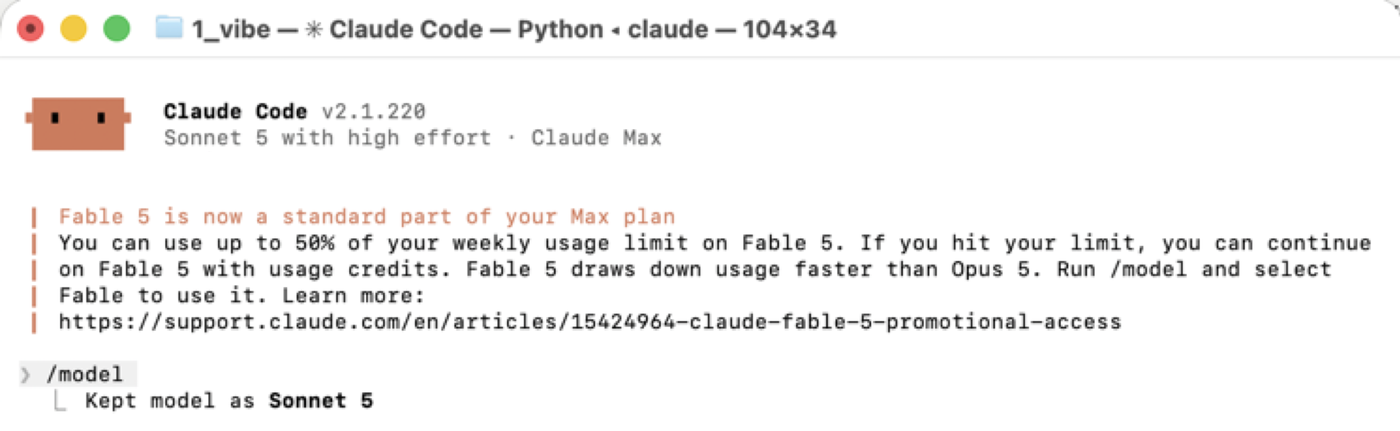
Switching on the fly. In the terminal you switch the model and how much it thinks halfway through the work with a single command. In the app you set this in the interface, and for some options it isn't possible at all.
Delegating to cheaper models. This is the practical difference. In the terminal you can have the searching, reading and summarising done by a cheaper helper and keep the smart model for decisions. The app doesn't do this on its own. It's by far the biggest saving on the limit that I know of — and it's described among the token tips.
More things at once. Several projects in several windows, and long runs that go on by themselves.
Don't be afraid of it, and you don't have to go there. If the app suits you, stay with it — just know that the ceiling you've hit doesn't have to be the tool's ceiling.