Getting started
What you need
Download the Claude app. You'll need a Claude subscription — Pro or Max.
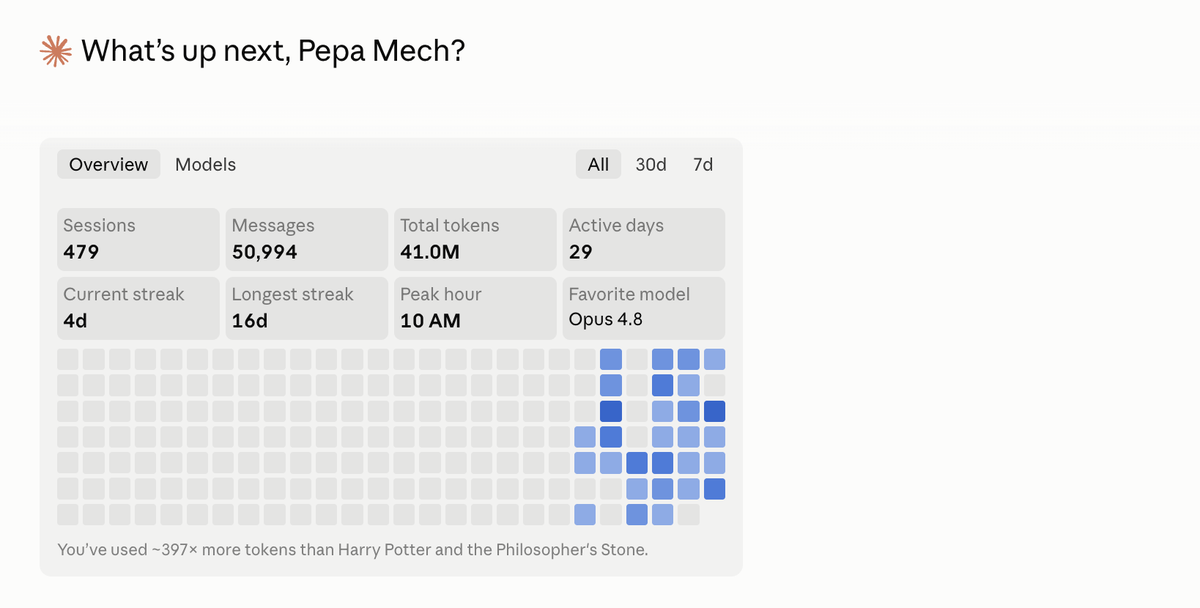
One task = one folder
The app always runs on a specific folder. That's the whole trick: the agentA program that does the individual steps for you on its own — reads files, writes them, runs whatever is needed. Claude Code is an agent. A chat only answers; an agent works. sees exactly what is in that folder, and nothing else unless you allow it.
You can see which folder you're working in at the top, above the input box. Click it to choose a different one.

If you know Harry Potter, you know the Pensieve — the stone basin where Dumbledore keeps his memories. Whoever steps into it sees exactly what is in it. Not one memory more. A folder works the same way: the agent sees everything inside it, but nothing outside. What you didn't put in, it doesn't know about.
So before you start, prepare it. Put in the texts, spreadsheets, slides, images, videos — everything you want to work with and that matters for a good result.
The brief. The brief. The brief. The brief is the most important file
Write a file in the folder that says what the goal is. Ideally in markdown (.md), but any text format will do. It's much better than building the brief bit by bit in the chat and making it up "as you go". Feel free to ask Claude first, but think about what you want to do.
I've never regretted spending time on writing a brief. But I've regretted skipping it quite often…
Why markdown of all things
Markdown is plain text with a few marks for headings and bullet points. AI reads it extremely well, because nothing in it is hidden — it sees exactly what you see. You can't say that about .docx or .pdf, which carry a lot of clutter — and you don't want that.
| You write | It means |
|---|---|
# Heading | large heading |
## Heading | smaller heading |
- item | bullet point |
**text** | bold |
Where to get .md files: in Google Docs via File → Download → Markdown. Or in Obsidian, which works with them natively. Or in any text editor you like — just save the file with the .md extension.
Don't overthink it at all, just write freely:
I've uploaded 12 months of data from our shops. Go through all the files and analyse what's in them. The goal is clear reporting in one consistent format for all the shops — suggest the metrics and how the data should be updated. I want it to be a password-protected web page that I can share with other colleagues.
Then open the folder in the app and tell Claude to get going.

While it works, you can see what it's doing — which files it reads, what it creates, what it runs. If it heads the wrong way, stop it with the Esc key. What it has already done isn't thrown away.
For bigger projects it pays to spend time on the brief, maybe even talk it through with Claude, and then break the project down further.
It's not about length, it's about precision
Not precise enough:
Make me a nice page.
Precise enough:
Create a one-page website with an intro section, three benefits and a contact form. White background, the copy is in
copy.md, the logo inmaterial/logo.png.
The second brief isn't longer for the sake of being longer. It contains four more decisions that the agent would otherwise have to make for you — and it would make them differently from what you wanted.
It's a bit of a chore, but time spent on the brief pays off. Later on you can even write your own skill for briefs, or use mine.
Conversation controls
Under the input box you'll find a few buttons that are worth knowing when you write a brief.

Mode — what the agent may do on its own
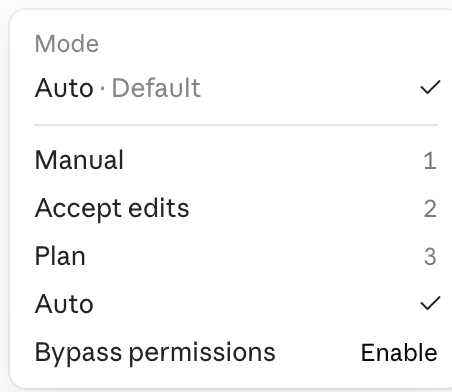
- Manual — asks about every step. The slowest, but you see absolutely everything.
- Accept edits — edits files on its own, asks about everything else.
- Plan — planning mode, where it only proposes a course of action. Good before you let it loose on something bigger.
- Auto — the default. Works independently and only asks where something can't be undone.
- Bypass permissions — asks about nothing. You don't need it for everyday work.
You don't have to decide in advance — you can switch the mode at any time, even halfway through a job.
You can dictate instead of typing

The microphone sits right next to the input box. It's perfect for exactly the thing nobody feels like doing — a long brief.
Model — who does the work
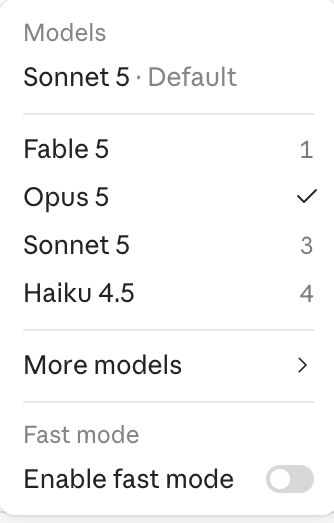
- Sonnet 5 — the default. Handles most everyday work, and the limit goes down slowly.
- Opus 5 — smarter. Reach for it when Sonnet doesn't quite get there. Opus is what I use most of the time.
- Fable 5 — the strongest. For things where a wrong answer would cost money or that are extremely complex — I use it to pull together the outputs of other models.
- Haiku 4.5 — the fastest. For simple mechanical work — processing texts and spreadsheets. Good for large volumes.
The stronger the model, the faster your limit goes — it's counted in tokensA small piece of text used to measure usage: roughly a syllable to a short word. Models don't count pages or characters but tokens, and your limit is made up of them.. Start with Sonnet and switch only when the result isn't good enough. The Fast mode switch below the menu speeds up Opus's output — it's not a weaker model, just a faster one.
Effort — how long the model thinks
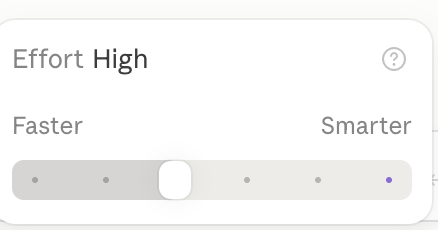
The slider sets how much the model thinks about a single step — not how much work it does. Higher effort therefore won't crack a hard task by itself; the model will just ponder it longer and eat into your limit faster. For everyday work, leave it where it is. Better to split a hard job into smaller steps.
Status window — how much you have left
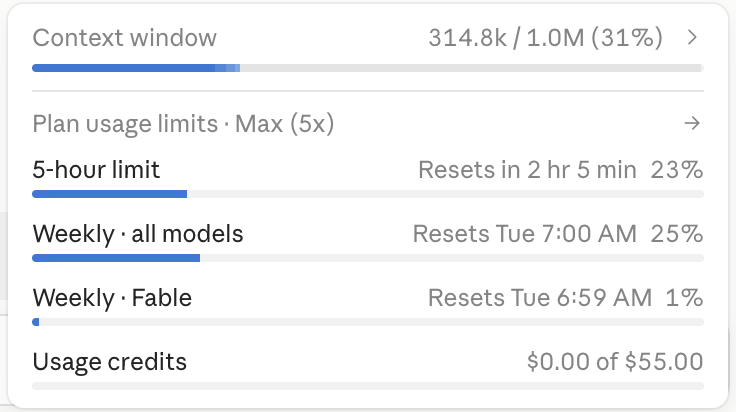
- Context window — how much the agent remembers from the conversation that's currently running. When it fills up, the
/compactcommand compresses it and makes room. - 5-hour and weekly limit — how much is left until the reset. Each one shows when it resets.
- Usage credits — extra paid credit. It's only drawn on once you've used up your plan's limit and don't want to wait for the reset.
The first result isn't the last
This is the thing that makes people walk away from AI disappointed: they get a first result, it's not quite it, and they give up.
Yet this is exactly where it gets interesting. You say what's wrong, and it gets fixed. And you can do that ten times over. Each round is cheaper and faster than the one before, because the agent already knows what it's about.
That's why there's no point waiting until you have the perfect brief. You never will. Write down what you know, run it, and fine-tune based on what you see.
Ask for a page, not an answer
This is a small thing that changes how useful the result is more than anything else in this guide.
You read an answer in the window, and a week later you can't find it. If you add "make a page out of this" at the end of your brief, you get a file you can open in the browser, send to a colleague or open on your phone in the car. It outlives the conversation it came from.
It works for almost anything: comparing offers, an overview of numbers, a how-to, a holiday itinerary, meeting notes. And because it's a page, it can contain what doesn't fit into a chat — a chart, a table, a map, links to sources.
But the main thing is that you can keep working with it. Next time you say "add a column with the yearly price" or "switch it to a dark theme" and you have a new version. You don't start over.
Almost everything in the examples came about this way.
In short
- Run it on a folder that holds your material. What isn't in it, the agent doesn't know about.
- Write the brief into a file. It's the most important file in the folder. Markdown is best, but plain text will do.
- It's not about length, it's about precision. Every decision you don't make, it makes for you — and makes it differently.
- Watch what it does. When it's off target, stop it with the Esc key. You won't lose the finished work.
- The first result isn't the last. You say what's wrong and it gets fixed. Ten times if need be.
- Ask for a page, not an answer. It outlives the conversation it came from.
You don't have to learn any of this in advance. Open a folder, write what you want, and fine-tune the rest as you go.
Where next
- Give Claude Code an hour! — five things you can get done in a morning, and every task after them benefits
Once your first project works out, it's worth knowing how to set the agent up for good, which commands to use and how to live within the limit. That's what the next steps are about.